PLATFORM WORKFLOW
Task Description: Add and Remove a Contact from a Sequence
Objective: To show Organization Admins and Users how to add and remove a contact from a sequence
Organization: Under Admin or System User
System Permission Level: System Admin or System User
Step 1
Go to www.growthpowersuite.com and click the green Login button.

Step 2
Enter your username and password then click the blue Login button.

Step 3
Click on your Organization (if you are in multiple organizations). If you are only in one, you will begin on the Dashboard.
Step 4
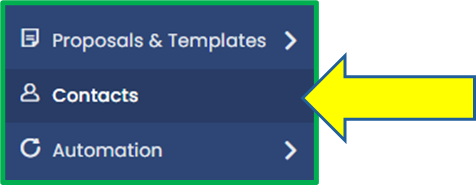
Click on the Contacts tab in the Module Menu Panel.
Step 5
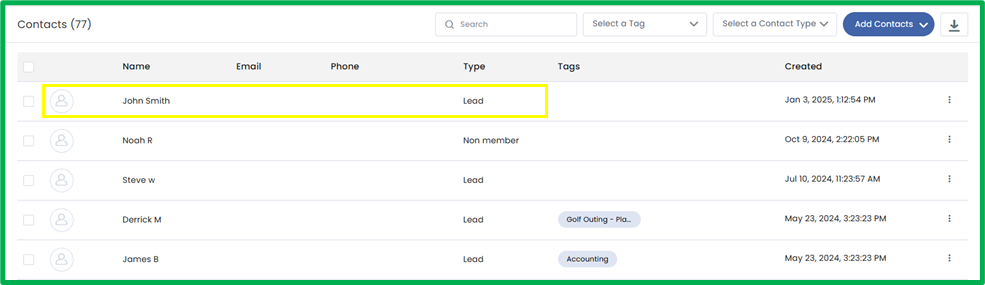
Select the contact that needs added to a sequence.
Step 6
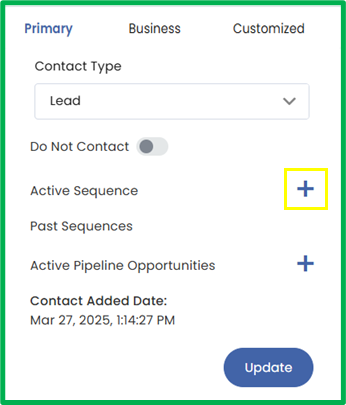
After selecting the contact, you will be taken to the Contact Details screen. In the Primary tab, locate the Active Sequence field and click the blue Plus Sign next to the field.
Step 7
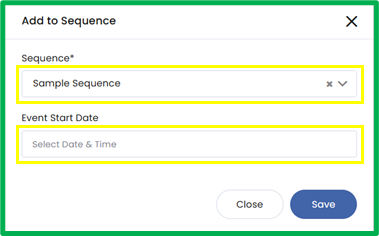
A popup will appear. Select the sequence from the Sequence dropdown and optionally set an Event Start Date if you need the sequence to trigger on a certain date and time. If the Event Start Date is left empty, the sequence will trigger immediately.
Step 8
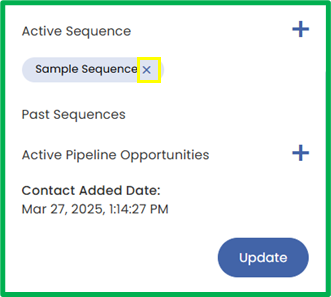
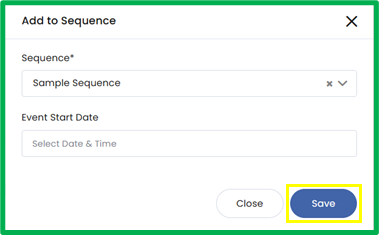
Once the fields are configured, click the Save button to add the contact to the selected sequence. You will now see the sequence listed in the Active Sequence field.
Step 9
To remove a contact from a sequence, click the X inside the sequence name located under the Active Sequence field. The sequence will be immediately removed from the contact.