PLATFORM WORKFLOW
Task Description: Add a phone number and a forwarding number to your organization
Objective: To show Organization Admins and Users how to add a phone number and a forwarding number to their organization
Organization: Under Admin or System User
System Permission Level: System Admin/User and Organization Admin
Step 1
Go to www.growthpowersuite.com and click the green Login button.

Step 2
Enter your username and password then click the blue Login button.

Step 3
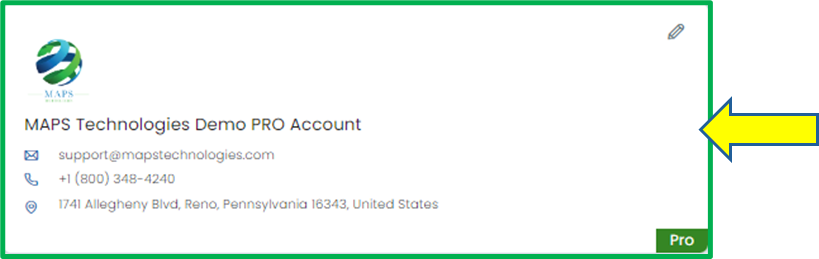
Click on your Organization (if you are in multiple organizations). If you are only in one, you will begin on the Dashboard.
Step 4
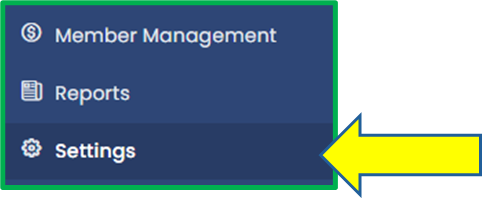
Click on the Settings tab in the Module Menu Panel.
Step 5
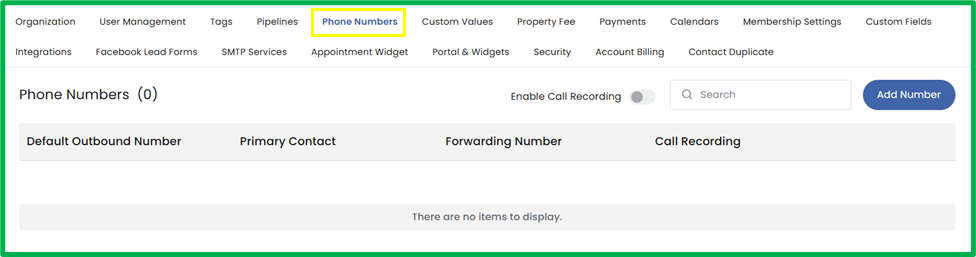
Click on the Phone Numbers tab at the top of the Settings menu.
Step 6
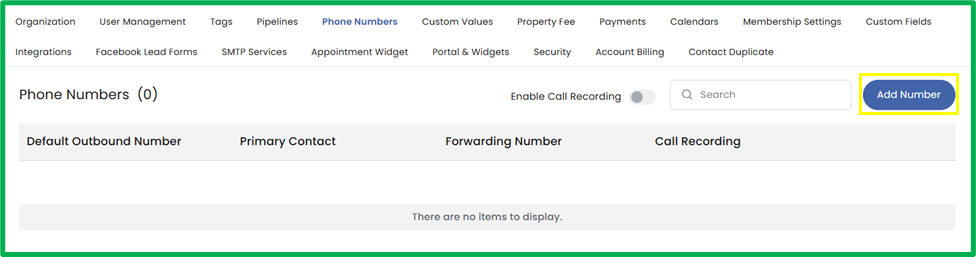
Click the Add Number button in the top right corner.
Step 7
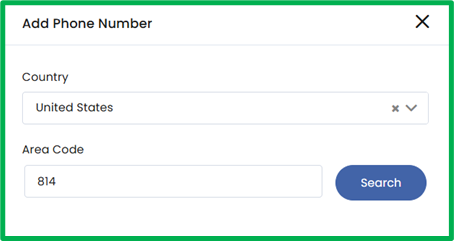
An Add Phone Number popup will appear. Select your Country from the dropdown menu, enter an Area Code in the textbox, then click Search to view available phone numbers for that area.
Step 8
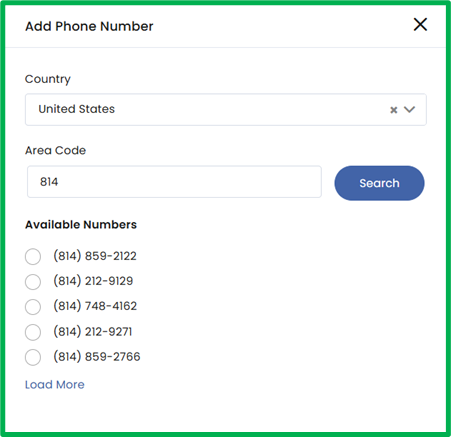
Select a phone number from the populated list. If you are not satisfied with the available options, click Load More to view additional numbers.
Step 9
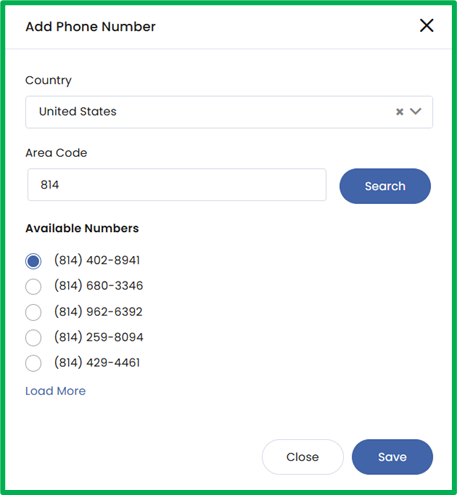
Select your desired phone number and click Save to add it to your organization.
IMPORTANT: Once the phone number is added to your organization, your organization will be charged for the purchase of the phone number.
Step 10
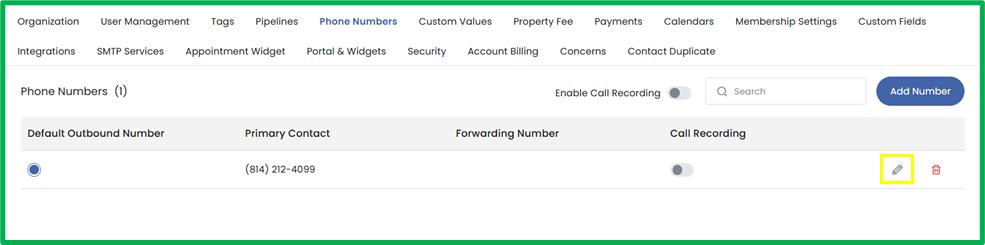
To add a forwarding number to an organization phone number, click the pencil icon that corresponds to the desired phone number.
Step 11
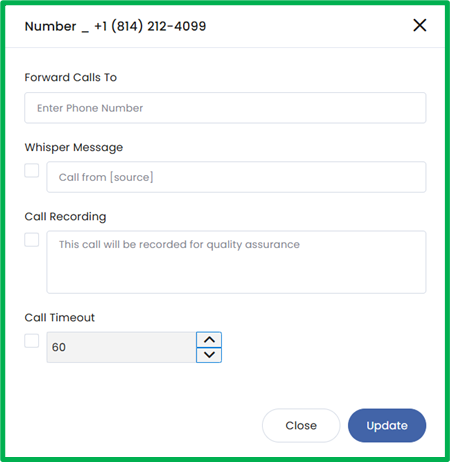
An edit phone number popup will appear. In this popup, you can configure how incoming calls are handled by setting the Forward Calls To number, and managing Whisper Message, Call Recording and Call Timeout options.
- Forward Calls To: Enter a 10-digit phone number where incoming calls should be forwarded.
- Whisper Message: Enable and customize a short message that plays to the call recipient before the call is connected, helping them identify the caller or purpose of the call.
- Call Recording: Enable this option to record incoming calls for quality assurance or record-keeping purposes.
- Call Timeout: Set the amount of time (in seconds) the system will attempt to connect the call before ending or routing it according to your organization’s configuration.
Once all desired settings are configured, click the Update button to save your changes.